
Steam Email Verification: Temporary Inbox Guide
Steam emails a verification message when you create an account and later sends Steam Guard codes to the same address. This guide shows how the first message looks in a temporary inbox during a test.
Before you begin
Open Tempgmail.io and copy the address displayed at the top of the tool. A public address lasts 10 minutes; the timer can extend it. The inbox is shared and should be used only for a disposable test. Check whether Steam accepts the address in your specific flow: acceptance can vary and is never guaranteed.
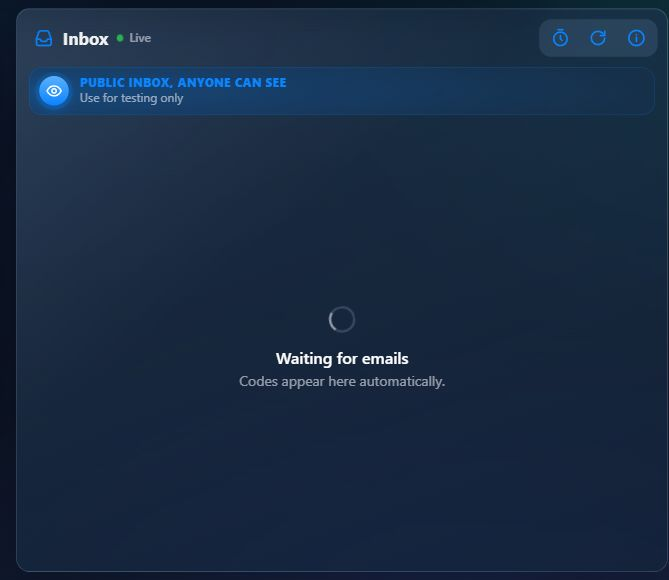
What the inbox looks like
- Enter the temporary address in the Steam email field for your test.
- Return to the Tempgmail.io tab and watch the inbox. Messages are checked automatically; use Refresh if needed.
- Open the expected message and copy its code or follow its verification link within the time limit. The displayed 123 456 in our illustration is a fictional sample, never a real code.
Steam details
Steam Support says its emails go to the address registered on the account, that some providers can delay them for up to 30 minutes, and that you should check spam and trusted senders before requesting another code. The exact screens and delivery timing can change, so use the service’s current on-screen instructions and Steam Guard code help when a step differs.
When to switch to your own email
Never keep a temporary address on a Steam account that holds games or funds. Steam Guard can send sign-in codes to that address at any time, so losing it can lock you out of your library.
If you decide to keep the account, change its contact email while you still have access to the account and confirm the new address. Do this before the temporary address expires. Tempgmail.io cannot recover a third-party account or resend an old message after its address ends.
Get a temporary address and watch for your test email.
Open a temporary inbox